
Advertiser / Publisher Profile
The My Profile page contains all the essential information about your account. This section covers each tab available in the Profile page, explaining their purpose and how to configure them correctly.
Profile Tab
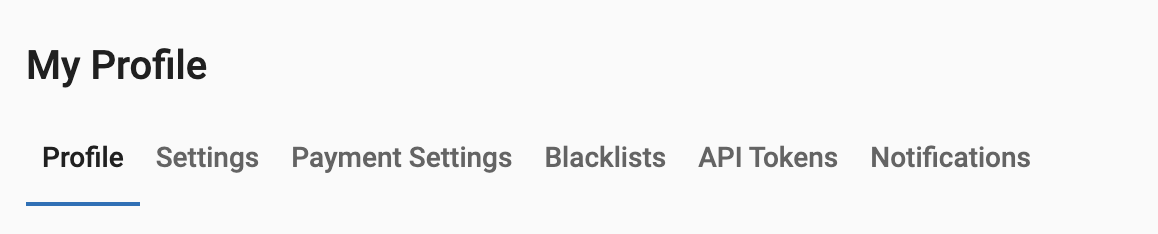
The Profile tab is where you provide all the necessary information about yourself or your business. The data you include here will be used for your publishing and advertising invoices, as well as to contact you should there be any issues with your account.
Note: The fields listed here must be completed in order to verify your account to run campaigns or to receive publisher earnings.
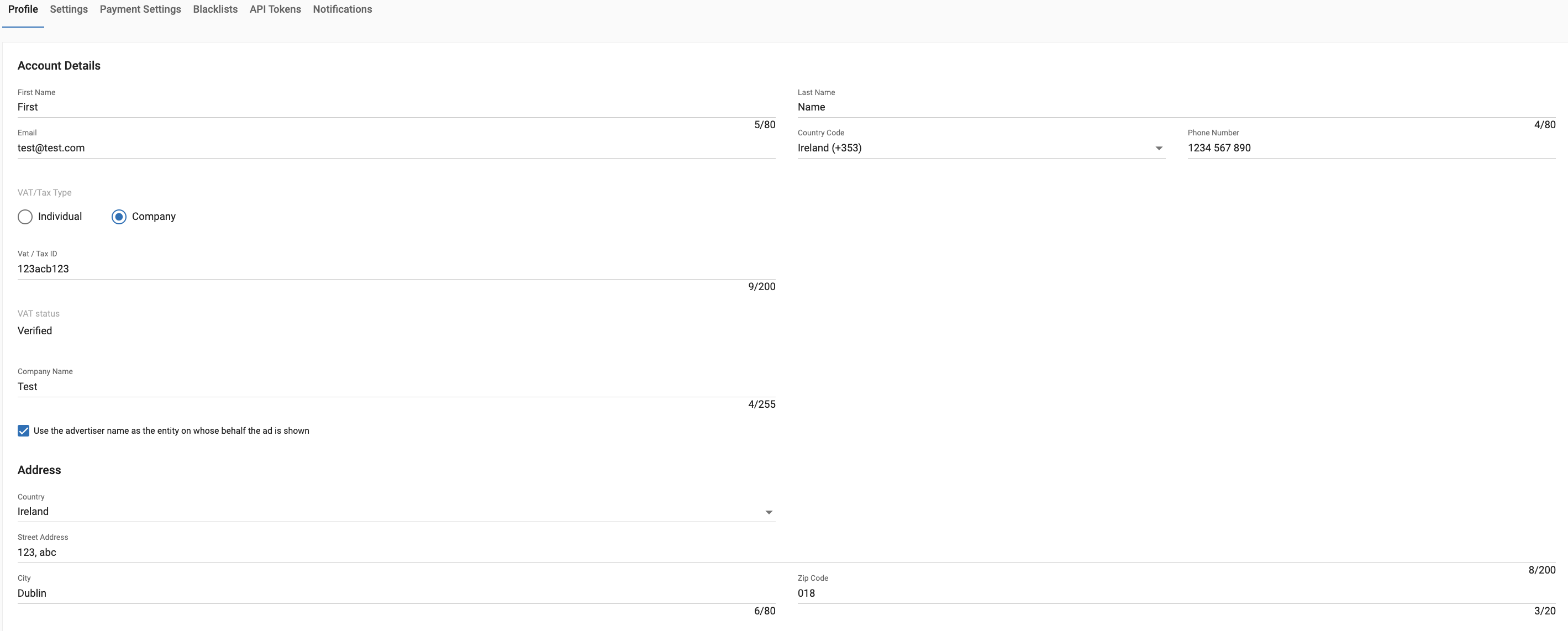
VAT / Tax ID
- Advertisers: You must verify your VAT number before adding funds to your account.
- Publishers: You must verify your VAT number to receive payments.
VAT/Tax Status: Shows wheter the account's VAT/Tax is Verified, Pending Verification, or Invalid VAT number.
For Advertisers and Publishers located in the EU or Northern Ireland, automatic VAT verification is available for ad servers with VIES API access enabled. This feature automatically updates the VAT status whenever a VAT number is added or modified.
Automatic verifications are also performed on a weekly basis to ensure that the VAT number is accurate.
Communication Settings
In this section, you can manage your communication preferences, including:
- Receive Email Notifications: Stay updated with important account-related alerts.
Security
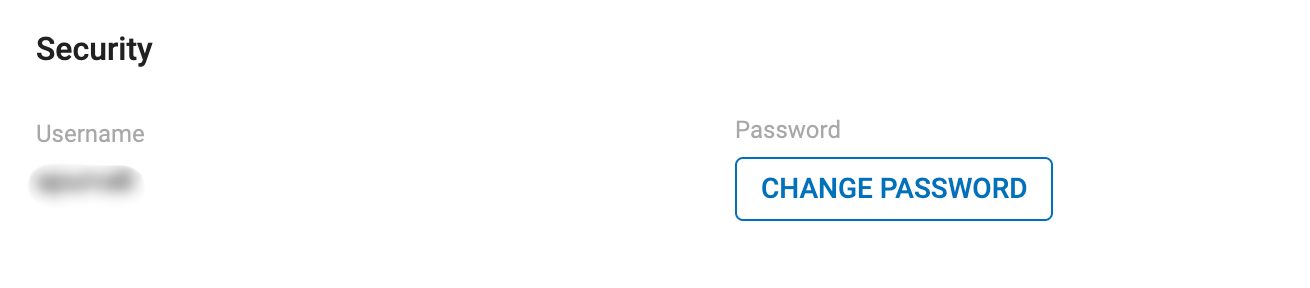
The Profile tab also includes security settings where you can change your password.
Two-Factor Authentication (2FA)
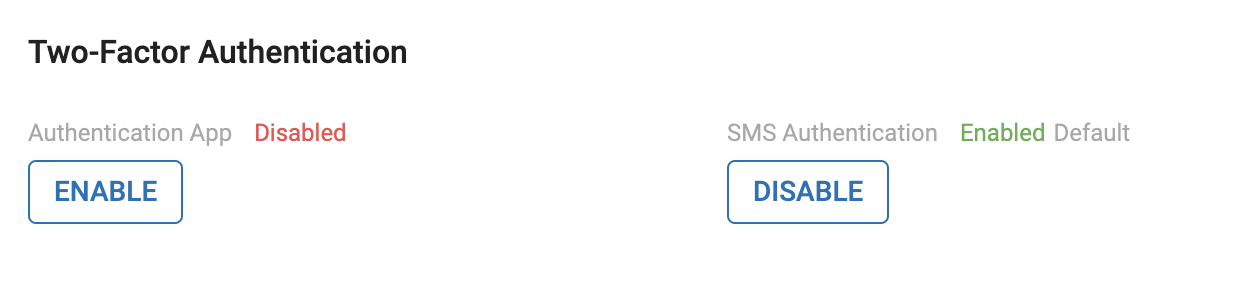
Two-Factor Authentication (2FA) adds an extra layer of security to your account by requiring a second verification step when logging in. We highly recommend enabling 2FA for increased security.
For more details, visit: Enabling Two-Factor Authentication
Settings Tab

Note: These settings apply only to advertisers.
Global Daily Budget
Set a daily budget for your advertising campaigns. You can choose any amount between $50 and $200,000 to control your spending. Once your Global Daily Budget is reached, all your active campaigns will automatically pause until the next day when the budget resets. This ensures that you do not exceed your planned spending.
Balance Email Alert
Receive an email notification when your account balance drops below a certain amount. You can set this threshold anywhere between $100 and $100,000 to stay informed and ensure your campaigns keep running smoothly.
Payments Tab
Note: These settings apply only to publishers.
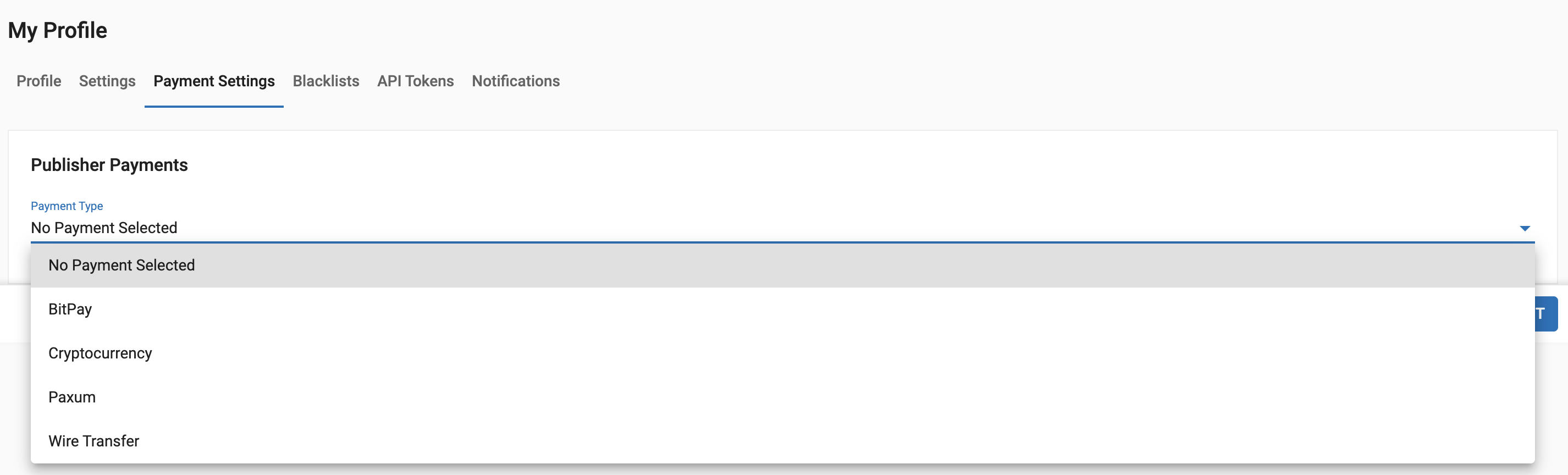
Payment Type
By default, no payment method is selected. Publishers must choose their preferred payment method to receive payouts.
Minimum Payout & Payment Frequency
- Set the minimum payout amount, which can range from $20 to $20,000.
- Choose how often you receive payments: Weekly or Monthly.
For more details, visit: Payment Options & Timescales
Blacklist Tab
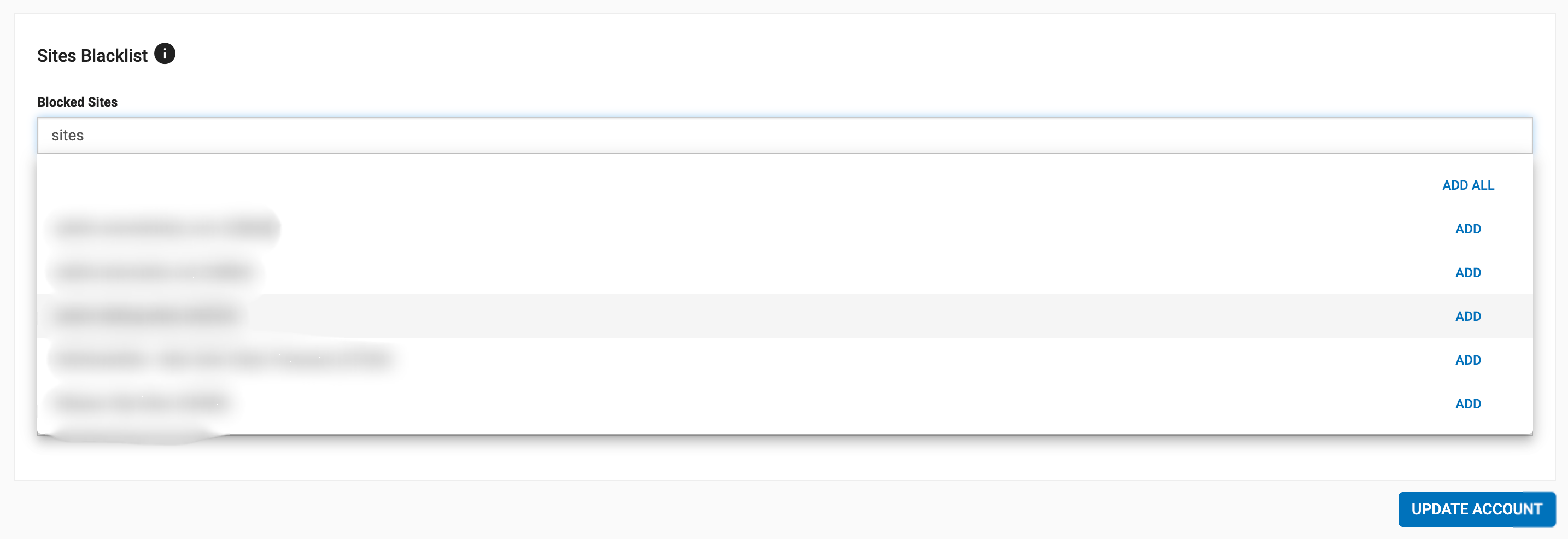
The Blacklists tab allows you to search for specific sites and add them to your blacklist. You can search by site name or site ID to find the sites you want to block.
How is this different from site blocking in campaigns?
- Campaign-level blocking only applies to a single campaign, meaning the blocked sites will still be able to send traffic to your other campaigns.
- The Blacklists tab, however, allows you to create a global blacklist that applies across all your campaigns. Any sites added here will be completely blocked from delivering traffic to you, regardless of the campaign.
If you want to target blacklisted sites again in the future, you can update your blacklist and remove them at any time.
For more details, visit: Blacklisted Sites
API Tokens Tab
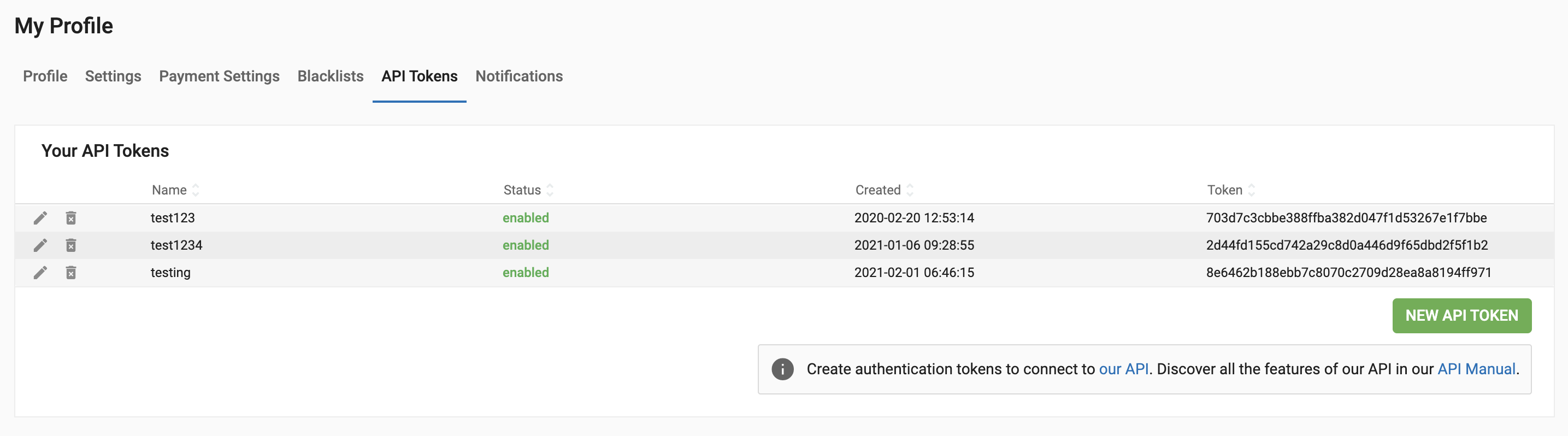
The API Tokens tab displays all the API tokens you have created. For each token, you can see:
- Status – Indicates whether the token is active or inactive.
- Date of Creation – Shows when the token was generated.
- Token – The unique key used to access the API.
Use these tokens to integrate with the API
Notifications Tab
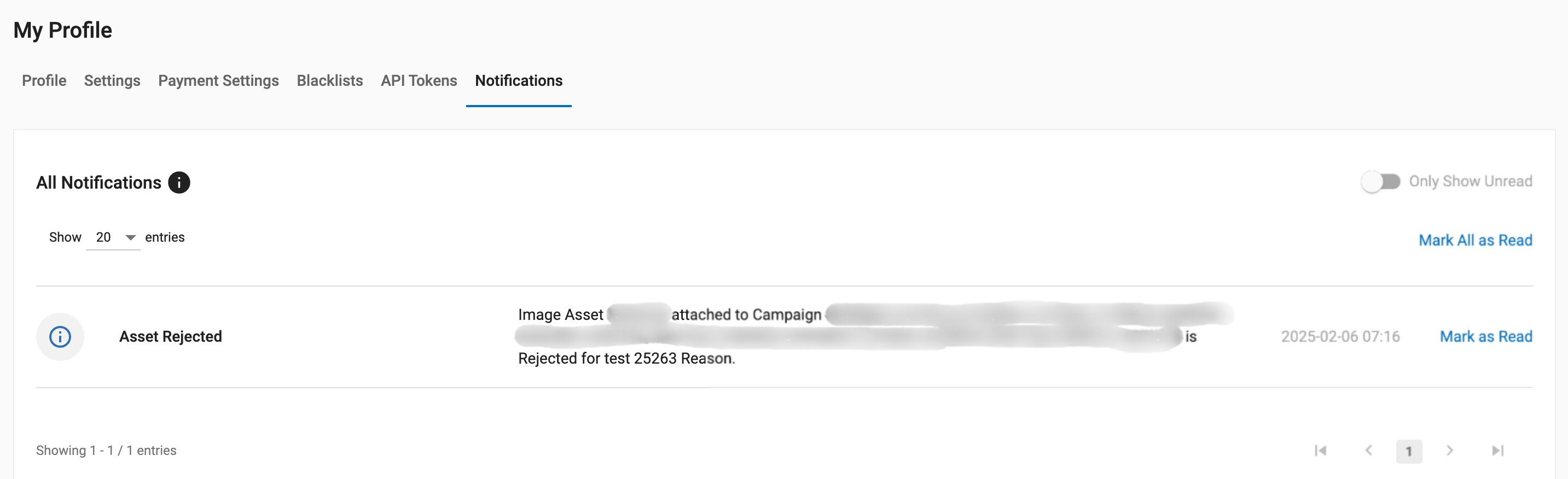
The Notifications tab stores all your notifications from the last 90 days. After this period, notifications are automatically deleted and will no longer be available.
For more details, visit: Notifications