Campaign Groups
The groups feature allows you to organize campaigns and put them into groups based on your chosen criteria. It is especially useful if there are a large number of campaigns that you need to keep track of.
You can group campaigns by country, type of product, device targeted, and many other criteria.
Creating a new group
To create a new group, click on the Campaigns tab. In the Campaign List section, click the NEW GROUP button.
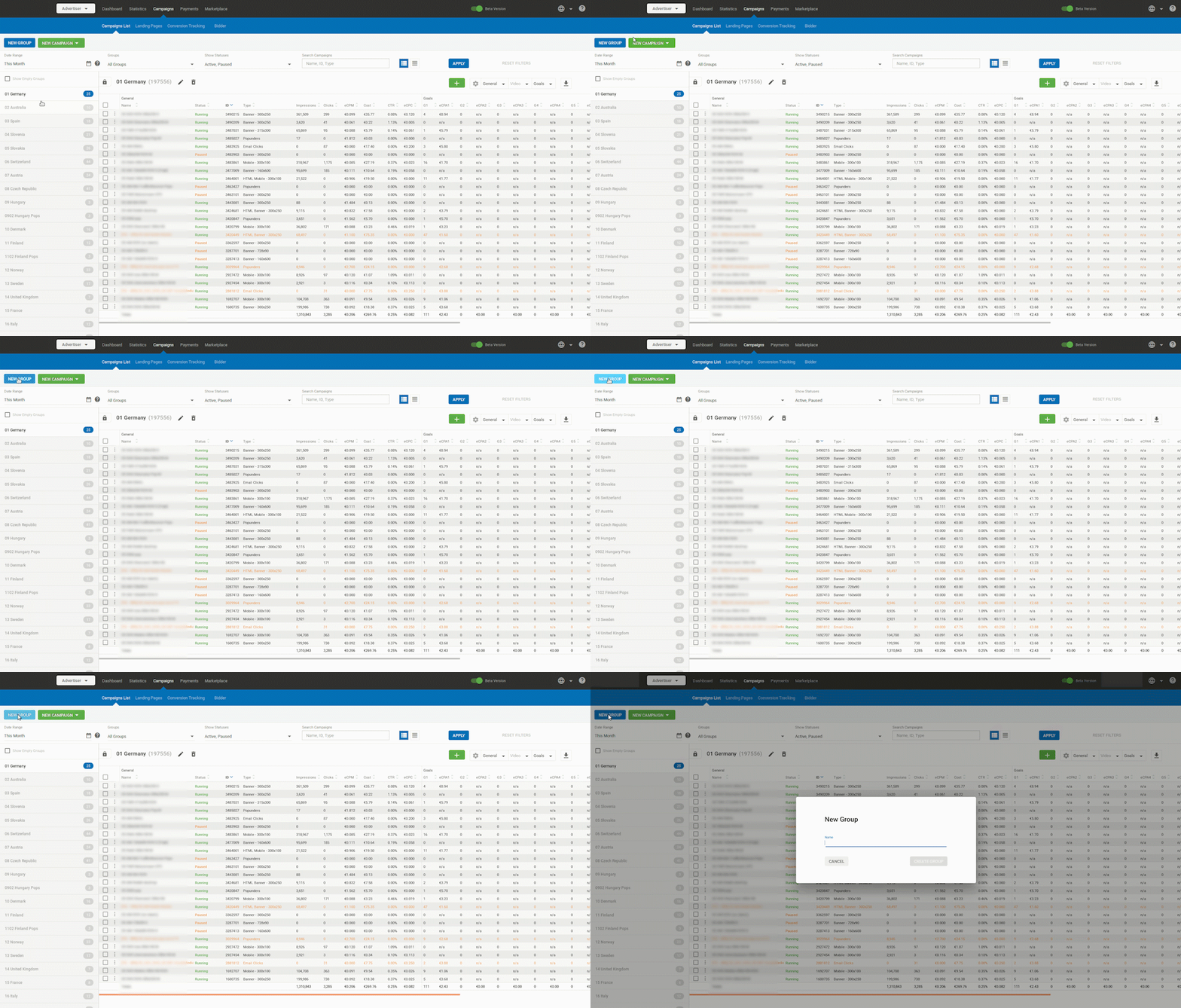
Note: Keeping the group name short will ensure that it’s fully visible in the Campaign page.
Assigning a campaign to a group
When you click NEW CAMPAIGN in the Campaigns List tab to create a new campaign, you will see a drop-down list of all the available groups that you can assign it to, or choose No Group from the list.
Moving an existing campaign to a different group
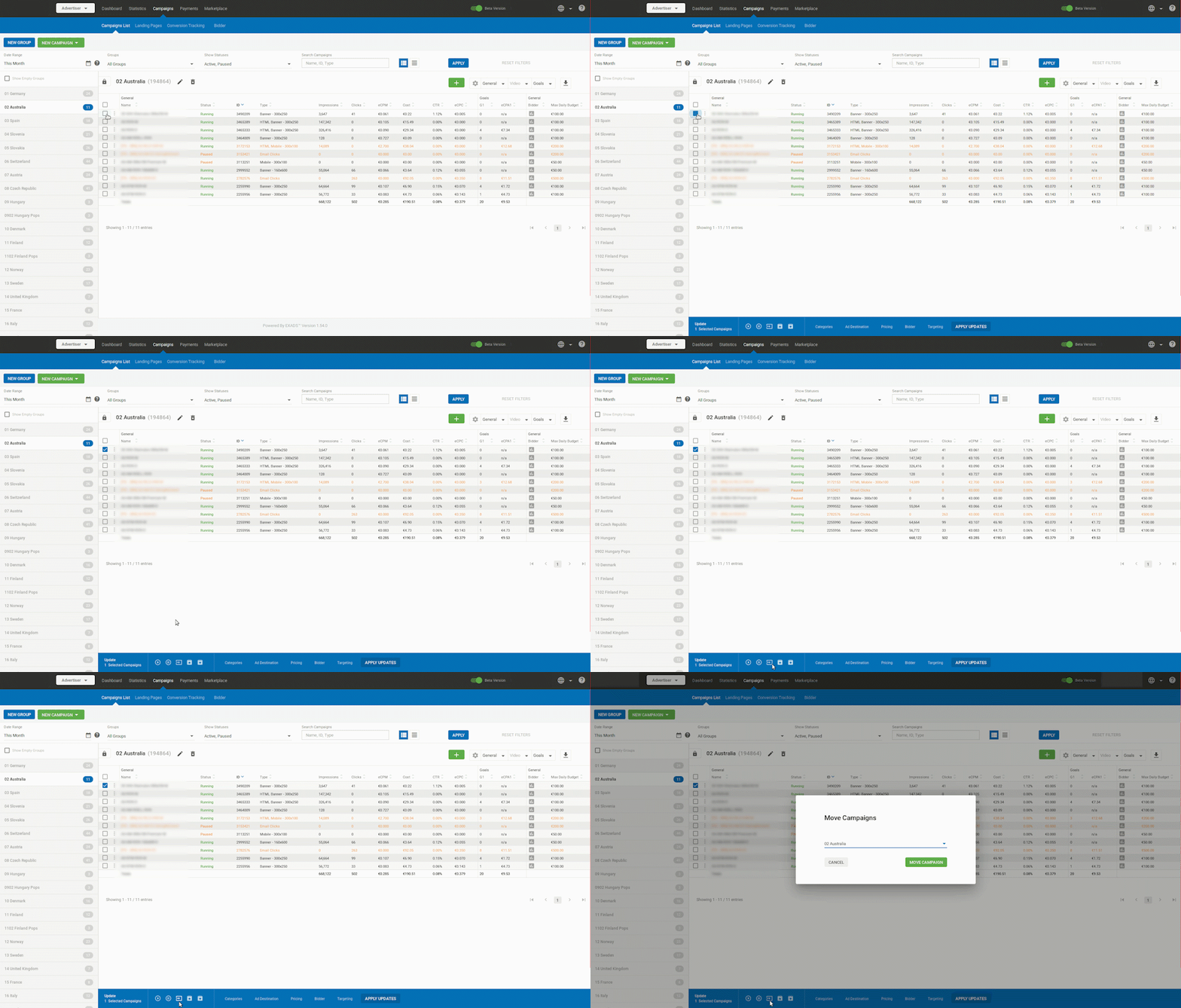
You can also move existing campaign(s) to a different group. To do this, tick the box beside the campaign(s) you wish to move in the list of campaigns in the Campaigns List tab.
In the blue panel that appears at the bottom of the screen, click the Move icon.
In the Move Campaigns box, select the group to move the campaign to from the drop-down and click Move Campaign.